Monday, November 2, 2026 · UX & UI Design
Affinity for iPad Combines Sketching, Vector Design, Photo Editing and Layout
Noted by Katy Cowan · 454 reads
Affinity brings drawing, image editing and page design into one iPad app, with its core tools free for individuals and optional AI features.
Affinity for iPad puts four stages of a creative workflow—sketching, vector work, photo editing and page layout—inside one touch-first app. The most consequential choice is how those tools connect: work stays together in a single .af file, so a sketch can become a vector and sit beside edited images and finished page designs without exporting between separate apps.
Canva launched the app for iPad today. Individuals can use its core tools for free, with a free Canva account required to get started. AI features require a Canva Premium account. For illustrators and designers who move between several kinds of work, that setup makes the app’s workflow and account requirements as relevant as its tool list.
One file for the whole process
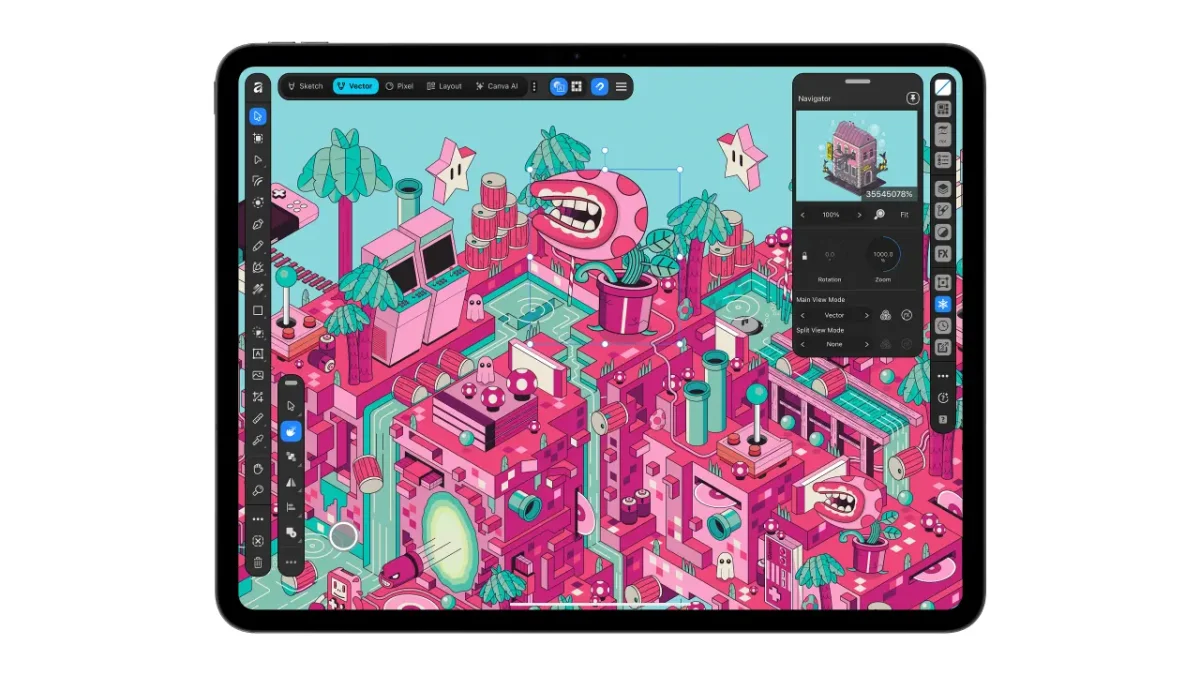
In many creative workflows, a drawing begins in one app, gets converted into vector artwork elsewhere, passes through a photo editor, then lands in a layout tool. Each handoff can mean exporting, converting or rebuilding parts of the project. Affinity’s shared .af file is designed to avoid those steps: sketch, vector, photo and layout work can live in the same document, ready to switch between as a project develops.
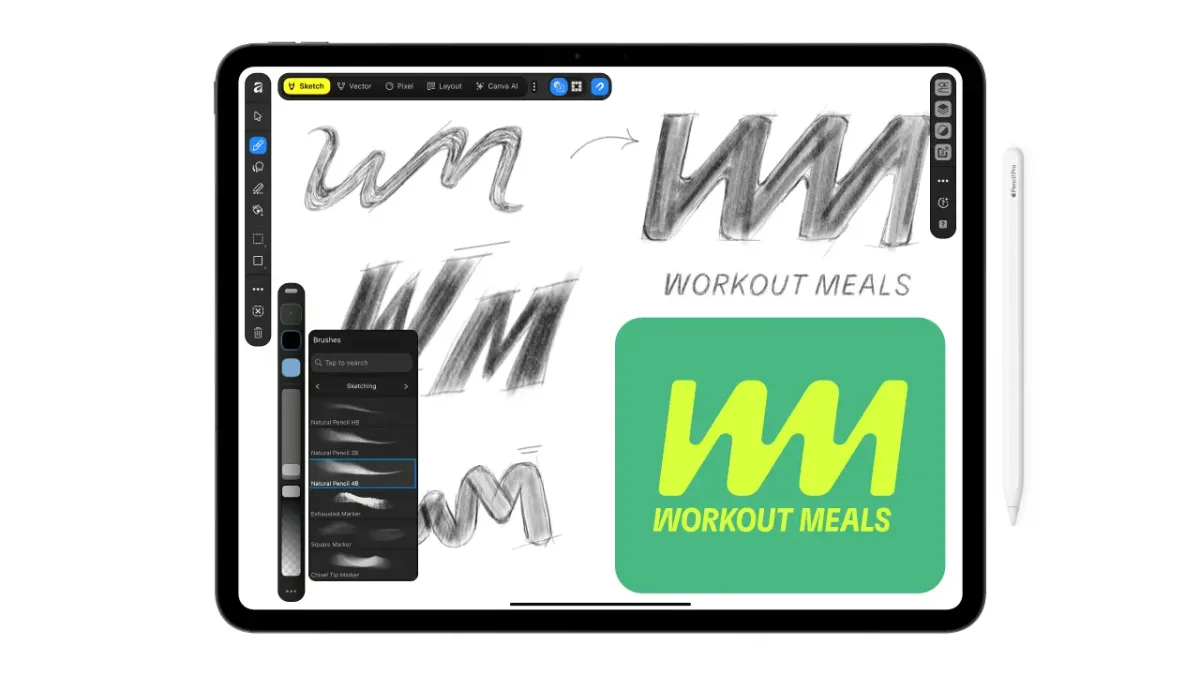
That connection matters in practice because early drawing doesn’t have to become a disposable starting point. The new Sketch Studio responds to Apple Pencil pressure and tilt, and sketches remain live in the file. An illustrator can return to those marks while shaping the finished work instead of starting again in another tool.
Sketch to Shapes turns hand-drawn forms into clean vectors. The Mask Tool is designed to follow difficult edges as the user draws, a potentially useful shortcut for selections around details such as hair and fur. These features aim to keep drawing and refinement close together, where the artist can make adjustments without a chain of file conversions.
Page design and print output
The layout tools extend the app beyond illustration and image work. Affinity for iPad can be used to make zines, lookbooks and photo books, with master pages and grids for keeping repeated elements consistent. A project can also be prepared as a print-ready file with colour handling built in.
That makes the document structure especially relevant for small publications. An illustrator can bring artwork and images into a page layout, use grids to keep the pages aligned, and work toward print output within the same project. The source doesn’t specify supported print formats or colour profiles, so production teams will need to check those details against their own print requirements.
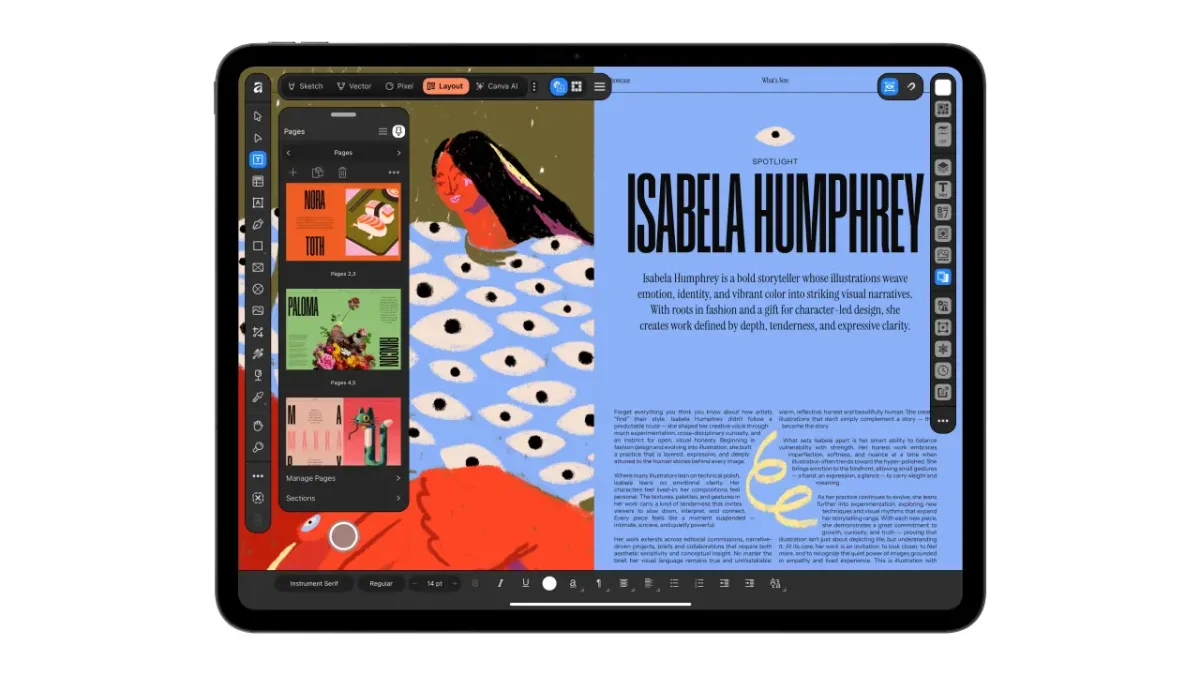
The interface was designed for iPad rather than adapted by shrinking a desktop layout. It supports Apple Pencil Pro features including pressure, tilt, barrel roll, squeeze and hover. For designers, the value of those controls depends on how naturally the interface makes them available during actual drawing and editing; the app’s purpose-built touch design puts that interaction at the centre of the experience.
Affinity already has a history on Apple’s tablet: Affinity Photo was named Apple’s iPad App of the Year in 2017. Canva says the new app was shaped by input from designers, illustrators and photographers, including its designer advisory board. Duncan Clark, CEO of Pro Design at Canva, said the request to bring Affinity to iPad had been the community’s biggest since the desktop apps came together.
Optional AI features
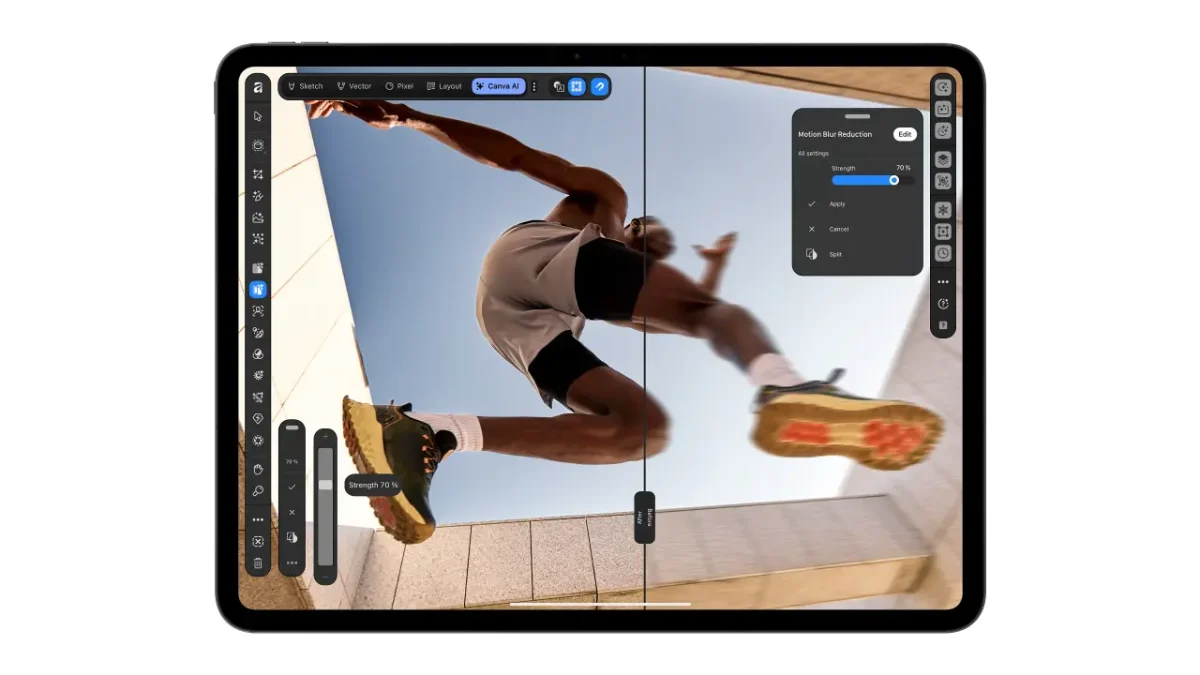
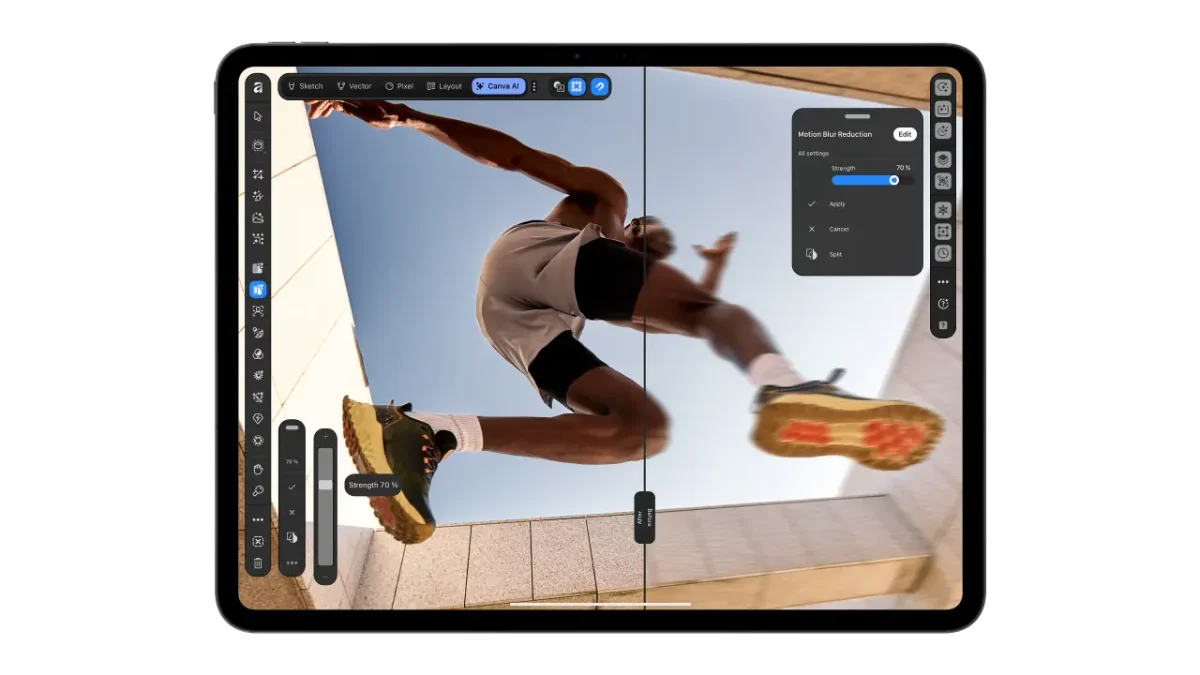
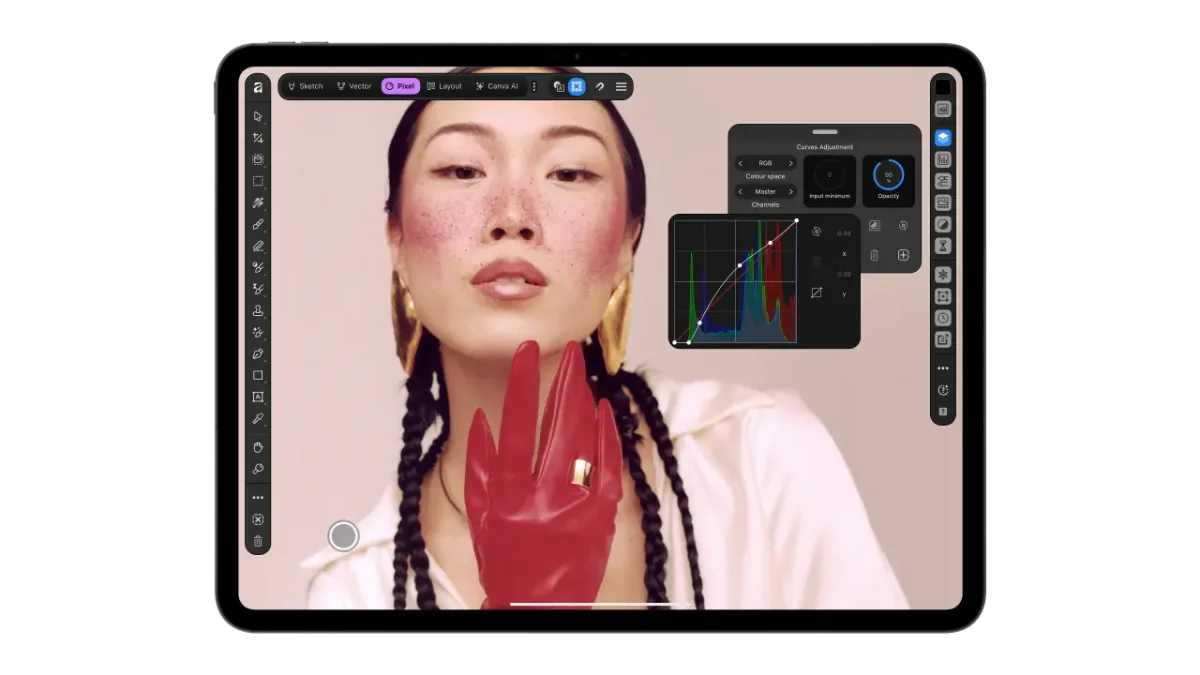
AI tools arrive in Affinity for iPad through Canva AI Studio. Generative Expand can extend an image; upscaling is available for low-resolution references and textures; and the app offers instant motion blur and noise reduction. Decompose Layer is designed to split a flat image into editable layers.
Those tools could help when a project needs an image adjusted or separated for further editing, while the rest of the app centres on hands-on drawing, vector creation, photo work and layout. Canva says the AI features are optional, with creative control staying with the user. They require a Canva Premium account, unlike the free core tools for individuals, so that distinction matters when deciding whether the paid features fit a particular workflow.
The app is available now on the App Store. Its central promise is a continuous working file that can move from loose marks to vectors, image edits and designed pages. For anyone who regularly rotates the canvas to place a difficult line, or jumps between apps to finish a single piece, the practical test is how well that connected workflow holds up on the iPad. Affinity’s website has further details.