Thursday, October 8, 2026 · UX & UI Design
Build an Audio Led Video Presentation: Eight Steps from Storyboard to MP4
Noted by Orana Velarde · 683 reads
Plan the story, design slides for viewing, sync motion with narration, check accessibility and export an MP4 that suits its destination.
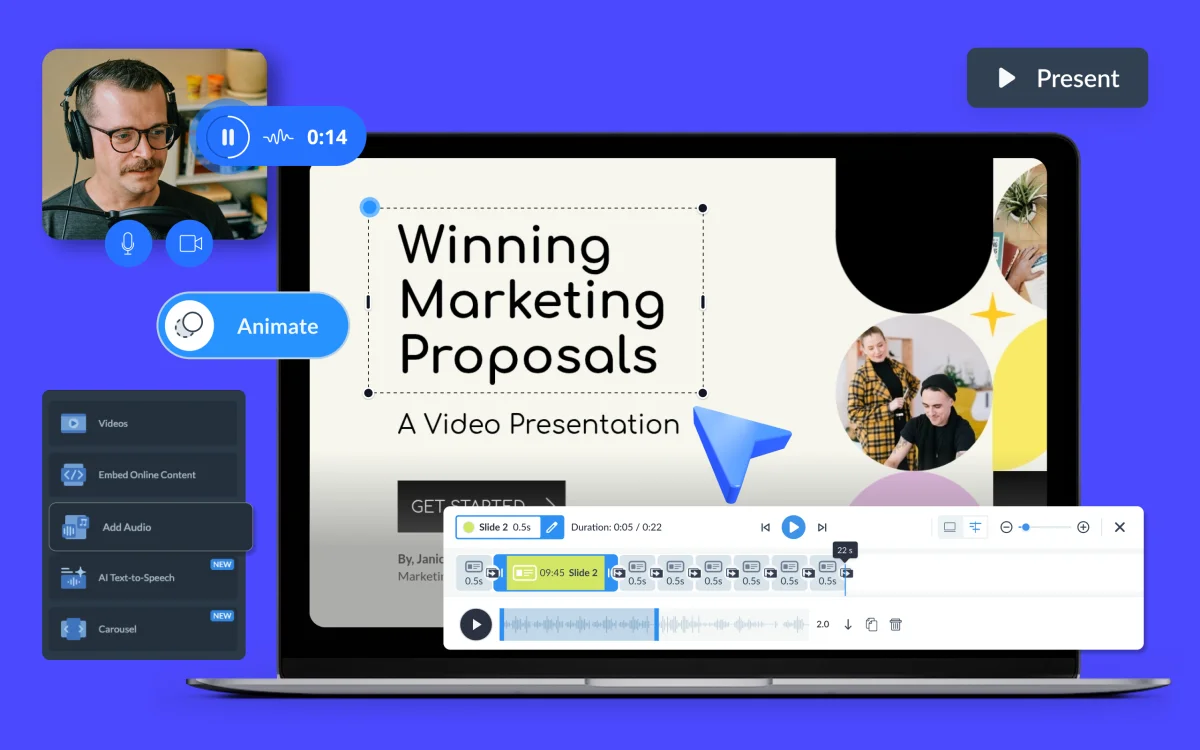
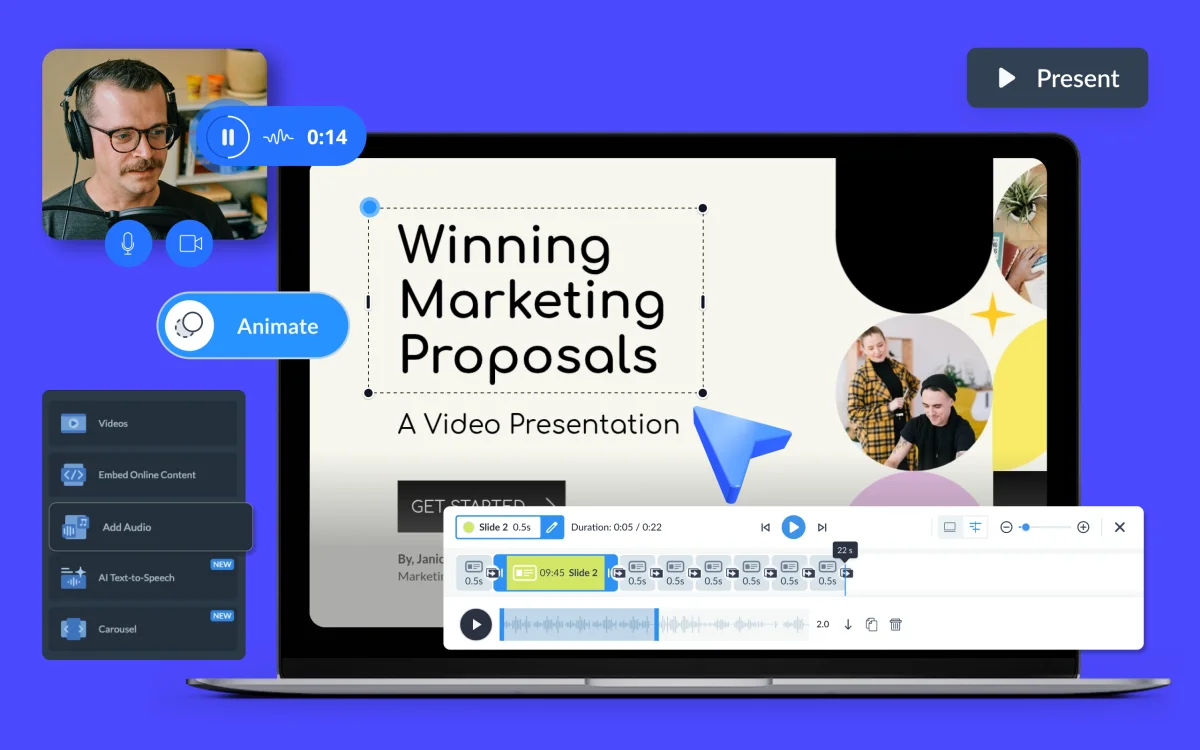
A video presentation turns a slide deck into a timed sequence people can watch and hear on their own schedule. That shift changes the design brief: slides need to read at viewing speed, movement needs to support the message, and audio must fit the pacing. It’s a useful format for product demonstrations, training, reports and pitches that need to reach people who can’t attend in person.
The production choices are connected. A long narration can hold a slide on screen; a clip can delay a transition; and an MP4 won’t preserve links or click based interactions. Planning those details early makes the finished video easier to follow and easier to share.
This workflow uses Visme as its example, from shaping the story through exporting an MP4. It covers music, recorded and AI generated narration, webcam recording, accessibility checks and a route for adapting an existing PowerPoint deck. Visme offers presentation templates, presentation software and a AI Presentation Maker.
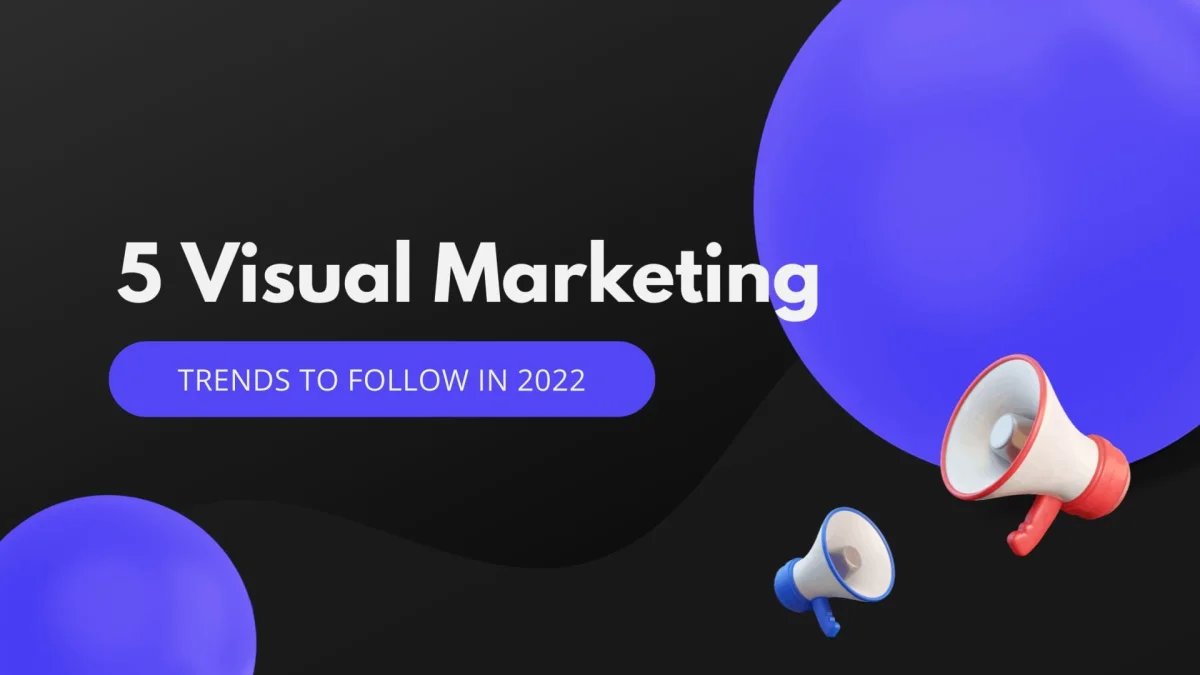
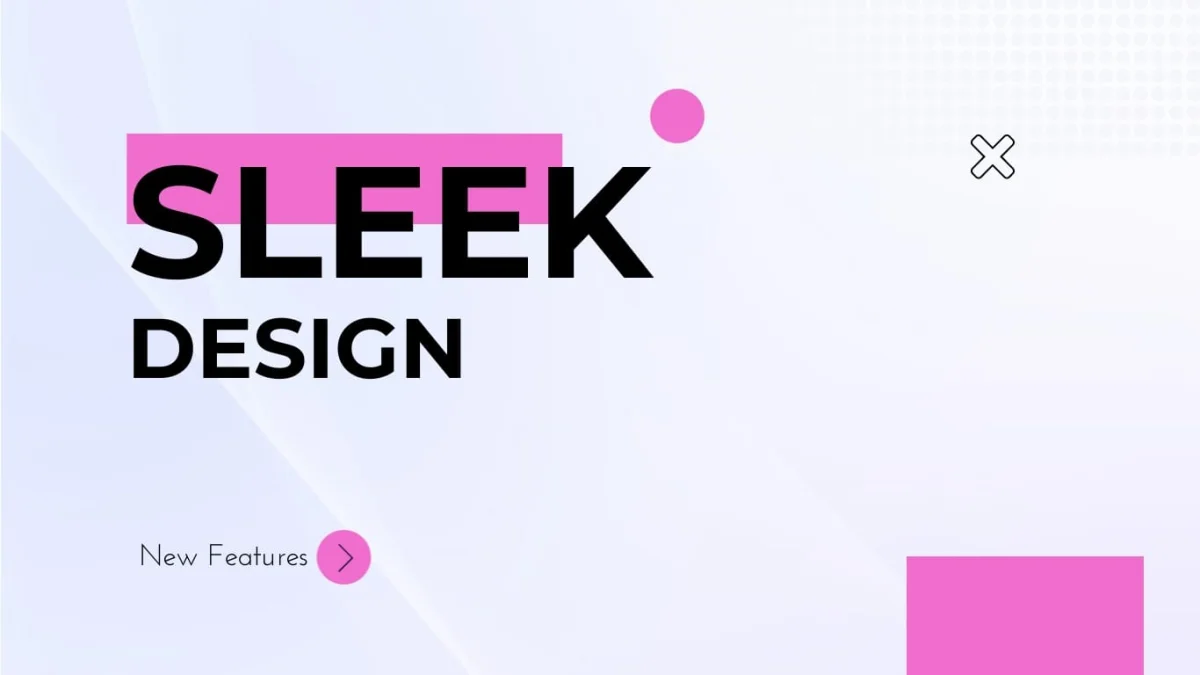
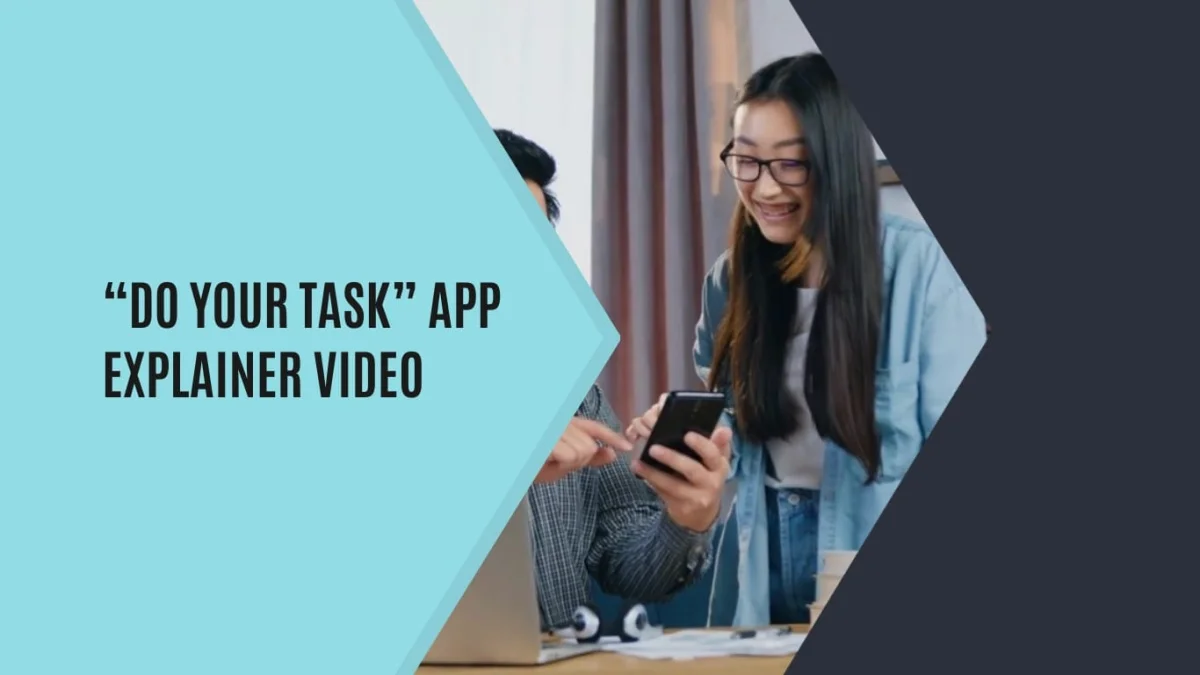
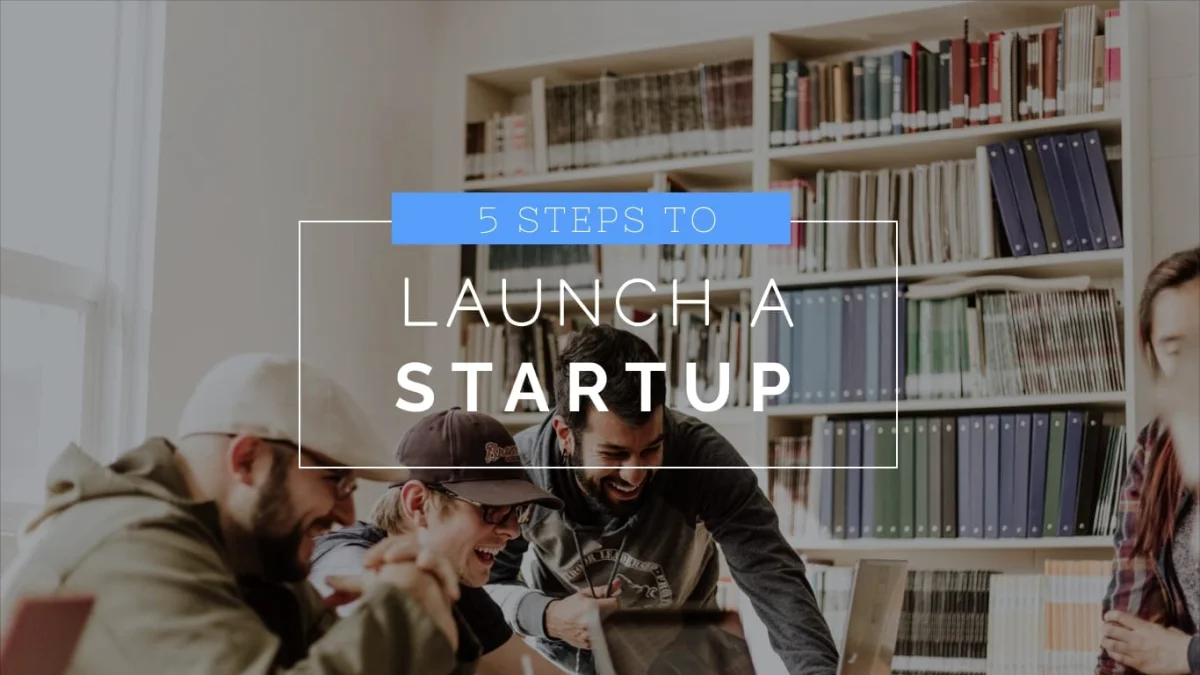
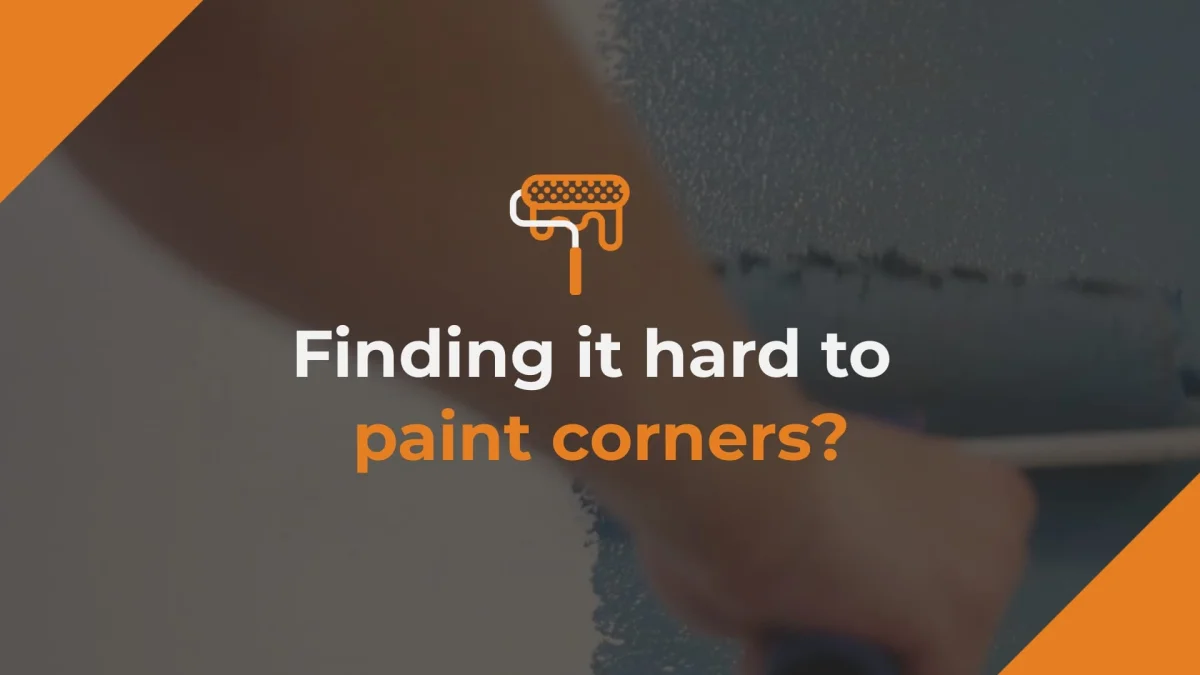
Template examples include sales, marketing, software, product promotion, problem and solution, startup, online banking and hardware explainer videos:



Design for a video, not a room
A video presentation is a sequence of slides saved as a video file, usually MP4. Each slide becomes a scene with a set duration, transitions and possibly its own audio. Viewers can pause playback, but the presentation moves from beginning to end without the live presenter deciding when to advance.
That format suits asynchronous learning and communication. A video can be hosted on YouTube or Vimeo, posted to social platforms, embedded on a website or placed in a learning management system. At a live event, a presenter can introduce the subject, then play the recorded presentation.
Audience research cited in the source gives a sense of why teams choose this format. TechSmith’s 2024 Video Viewer Trends Report says 83% of people prefer video for instructional or informational material. Wyzowl’s 2026 video marketing survey says 63% would rather watch a short video to learn about a product or service. These figures point to a format preference; they don’t remove the need to make the content concise and clear.
A strong video has one central message, a deliberate sequence and visuals built to be watched rather than read. One idea per slide is a useful constraint. Let narration explain the detail and use slide text to label the point. Motion earns its place when it directs attention or clarifies a process. A consistent animation style also helps viewers focus on the content instead of decoding a new visual effect in every scene.
Plan the piece as a video from the start. Draft an outline or storyboard, preview the sequence while building and choose a narrative structure—chronology, problem and solution, before and after, or a hero’s journey—that fits the material. The aim is a clear progression, not a collection of slides with a soundtrack.
Eight steps from idea to shareable video
1. Set the purpose and audience
Start by deciding what the viewer should know, feel or do after watching. That goal shapes the script, visuals, duration and sound. A product explainer intended to build awareness may spend time on the story behind the product and the problem it addresses. A sales presentation needs to make its offer and next step clear.
Align with the team on the viewing context before designing. A social feed, webinar and training platform call for different lengths and formats. Establish whether the audience is internal or public, and whether the video will rely on music, voiceover or a recorded presenter. Those answers guide decisions such as aspect ratio, tone and how much information belongs on screen.
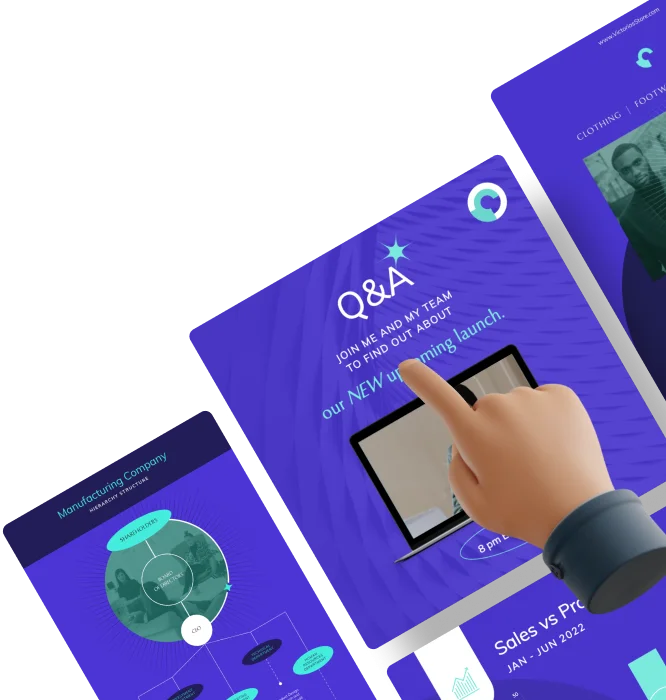
Write the objective and key messages down. Keep them close while making choices about scenes, graphics and audio, so production decisions stay tied to the original brief. A creative brief template can keep the audience, purpose and content in one place for designers, writers and stakeholders. Visme provides a collaborative design workflow and goal setting worksheets and templates for this planning stage.
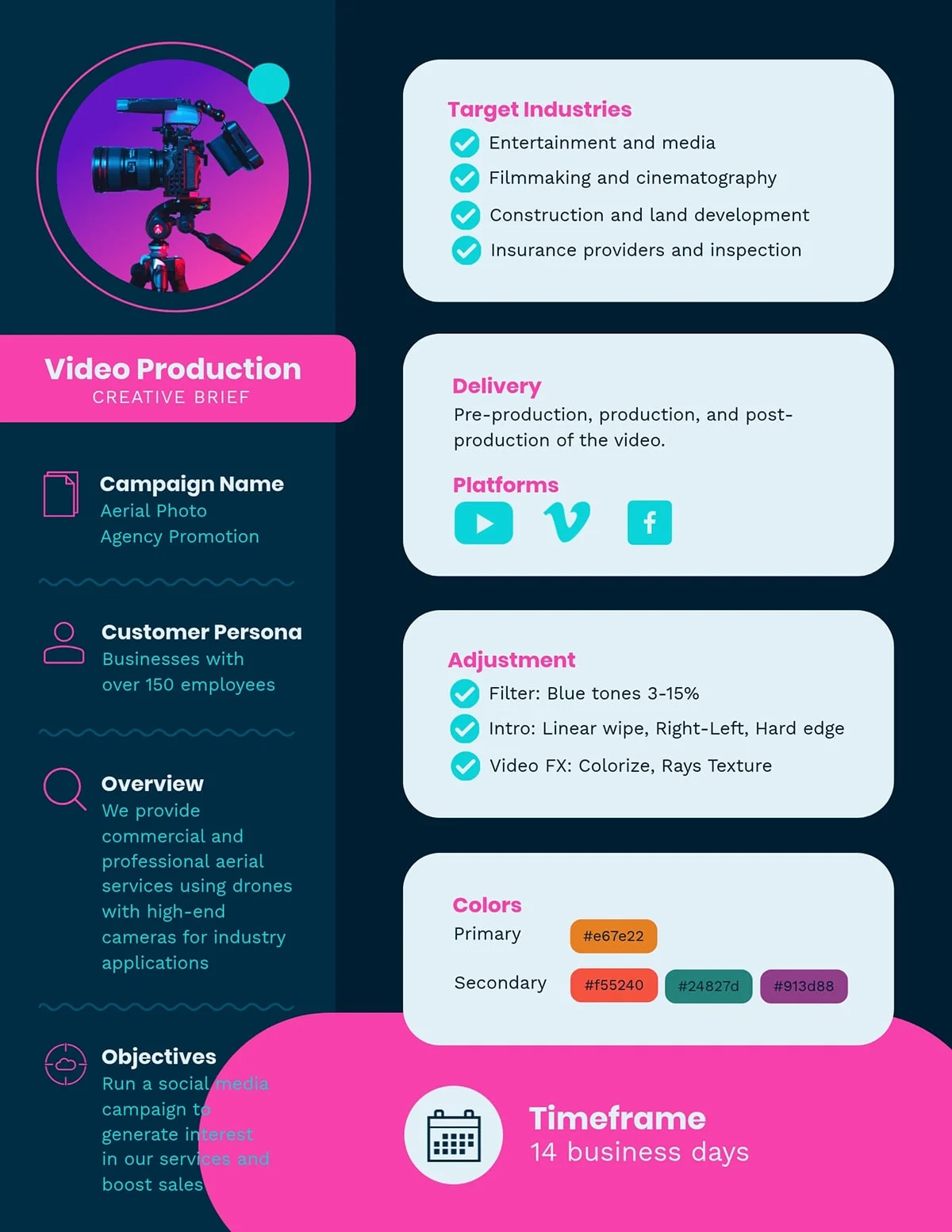
Customize the creative brief template
2. Write the script and map the scenes
Gather production assets in one folder: graphics, photos, clips, audio and brand materials. Put the spoken copy in a separate document and add notes about what appears on screen during each section. This makes the relationship between voice and image visible before layout work begins.
For a voiceover, write slide by slide in short sentences that sound natural aloud. Read the script as you edit it; a sentence that looks compact on the page may be awkward to say. For music, choose a track whose mood and duration suit the piece or the scene. Visme’s AI Writer can help draft copy, and its AI Text to Speech tool can turn a script into narration. The source also describes a library of music tracks and in-browser voice recording.
Next, match every passage of narration to a visual. An outline can list the copy and image for each scene. A storyboard goes further, sketching the composition and sequence so the team can review the pacing and visual logic before detailed design starts. Visme has storyboard templates to support this work.
A script and storyboard also make revisions more focused. Instead of debating every slide at once, reviewers can identify whether a scene is missing, whether the narration says too much or whether the sequence needs a different structure. Settle those questions before adding detailed animation.
3. Choose a starting point and build the slides
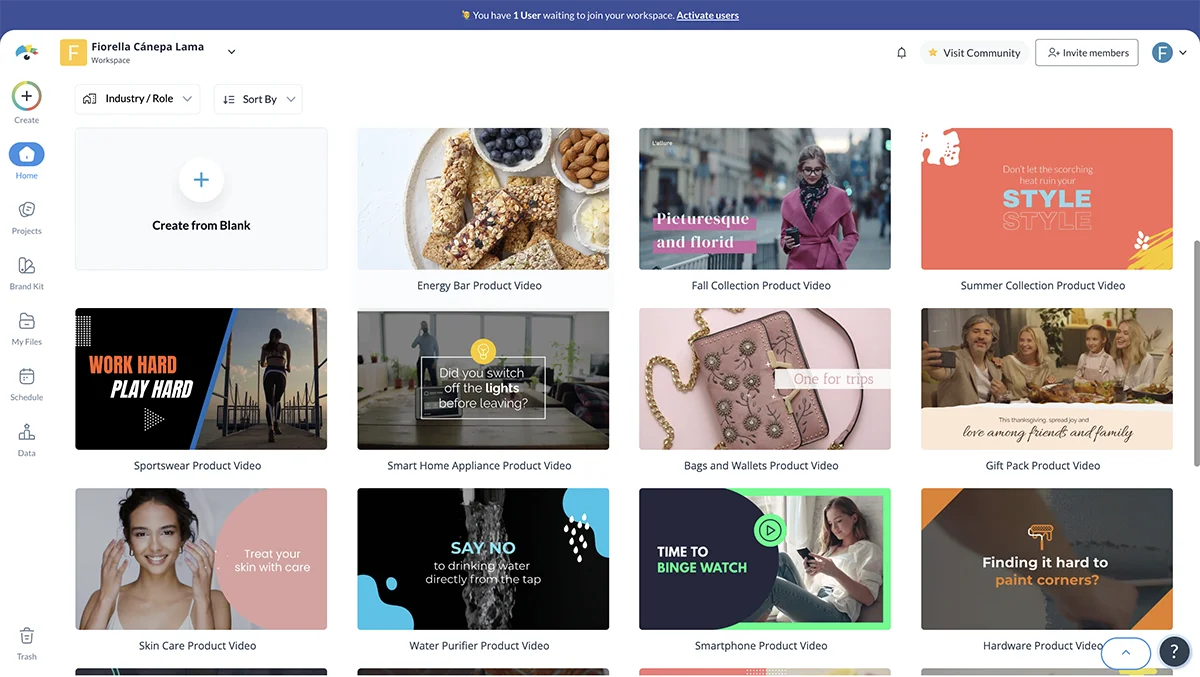
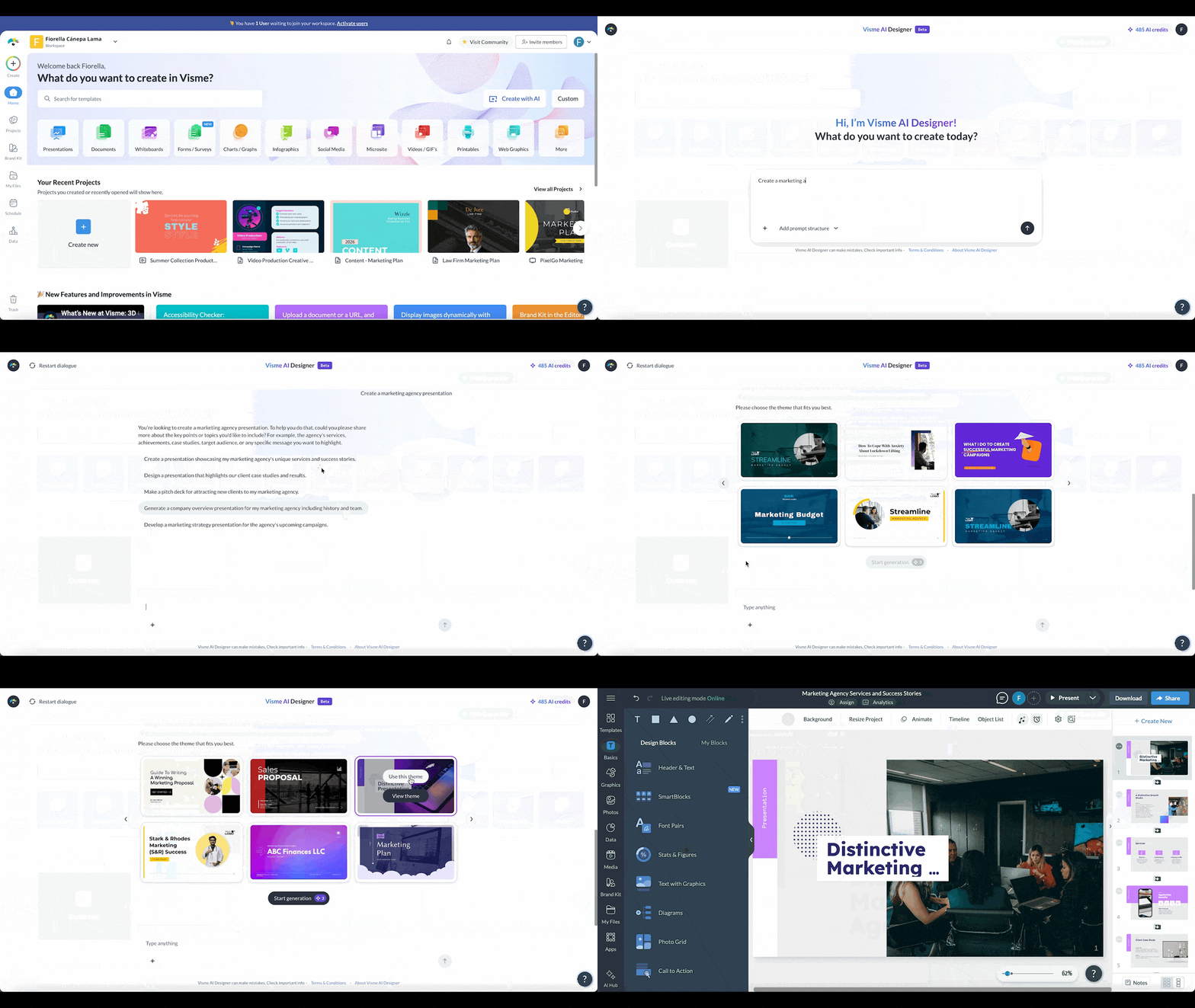
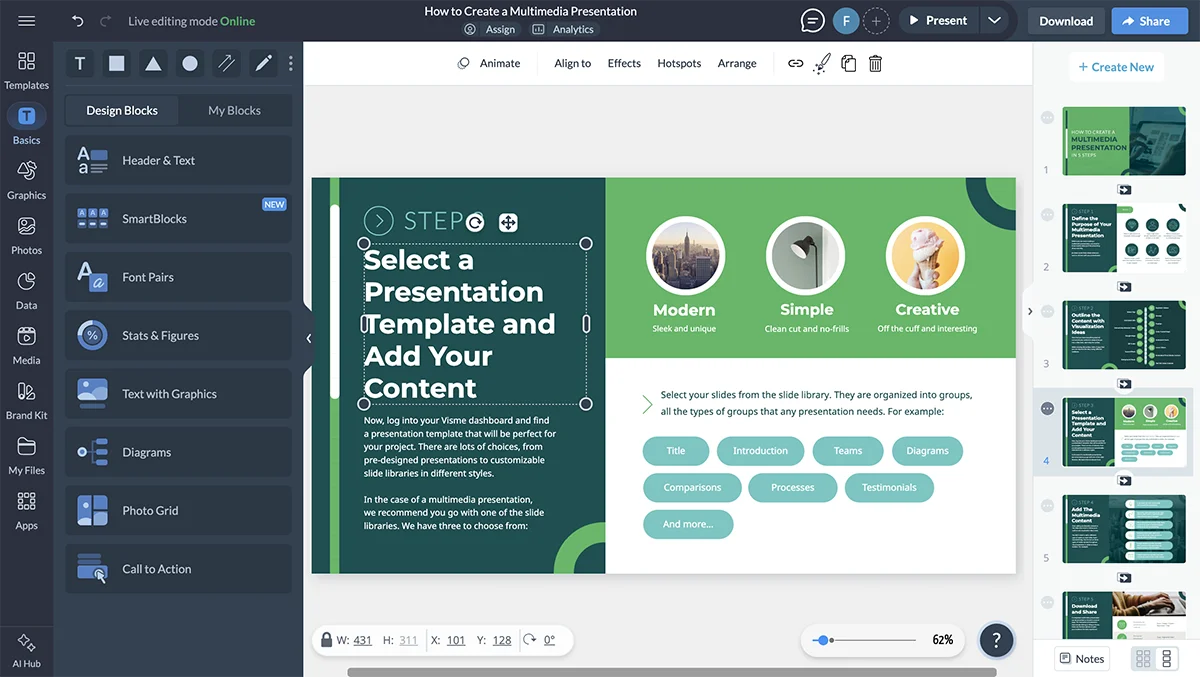
Visme offers several ways to begin. A video template gives you a designed starting point with animation already in place. A presentation template leaves more room to shape the layout and branding. The AI Presentation Maker can turn a prompt or a document into a first draft. An imported PowerPoint lets you reuse an existing deck, while an empty canvas supports a custom composition. A presentation already made in Visme can be adapted by adding sound and narration.
For a template, replace sample copy and imagery with material prepared for the project, then review the layout rather than assuming the original structure fits. With AI generated slides, compare each scene with the script, correct wording and replace images that miss the subject. The tool creates up to 10 slides at a time; duplicating a scene can extend the sequence while keeping its style. For an imported PowerPoint, inspect fonts, spacing and image placement after import.
Whichever route you choose, arrange slides according to the storyboard and check that each part of the script has a visual home. Keep copy sparse: viewers can’t read dense slide text at their own pace while also listening. Titles and section labels may be enough when narration carries the explanation.
Nancy Duarte, CEO of Duarte, puts the audience at the center of slide design: “Slides are not for you as a presenter. Slides are for the audience.” The principle matters even more in a video, where viewers have no live presenter to clarify a crowded slide.
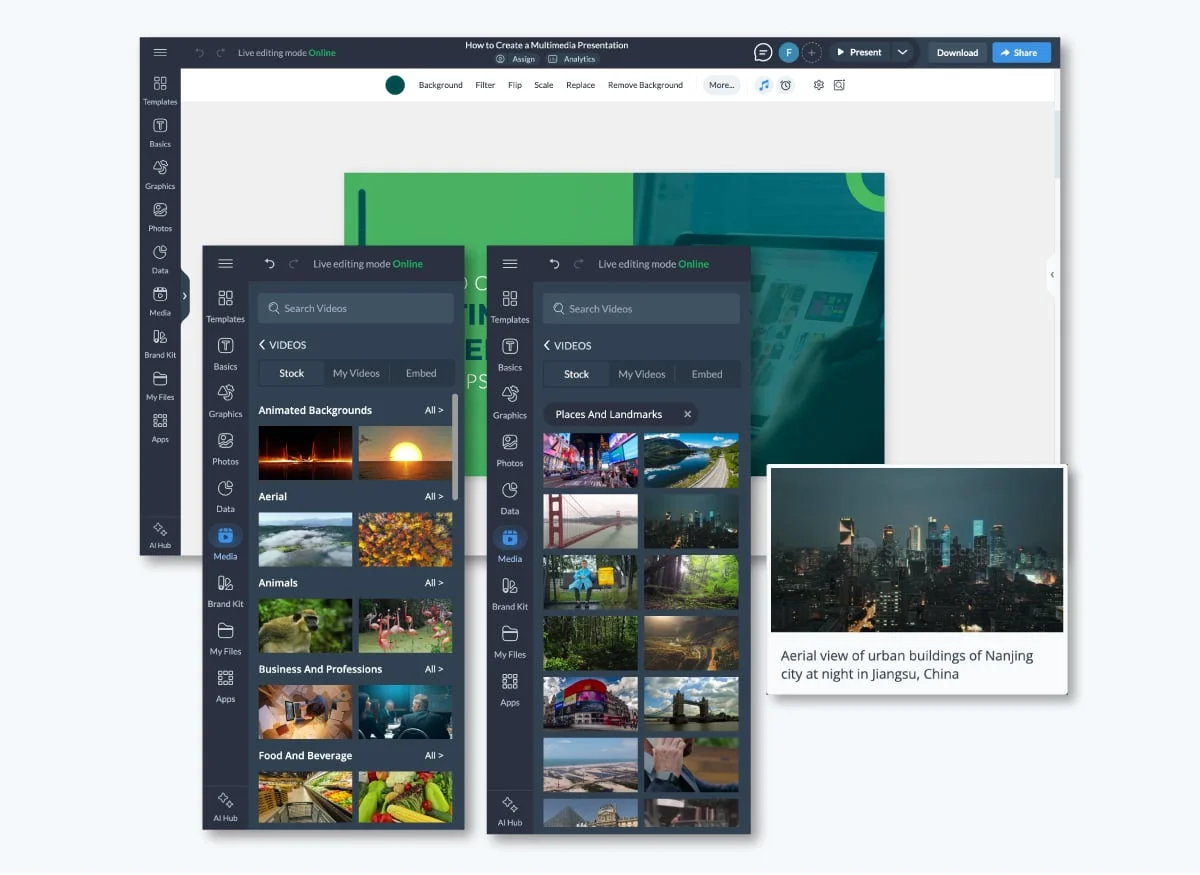
Choose images, icons and clips that reinforce the spoken point, and use a consistent visual language from scene to scene. Visme includes stock photos and videos and an icon finder; teams can also upload their own assets. Frames and crops help images fit the composition, while a Brand Kit can keep fonts and colors consistent. Keep backgrounds quiet—a filtered photo, soft gradient or restrained motion can add atmosphere without competing with the message.
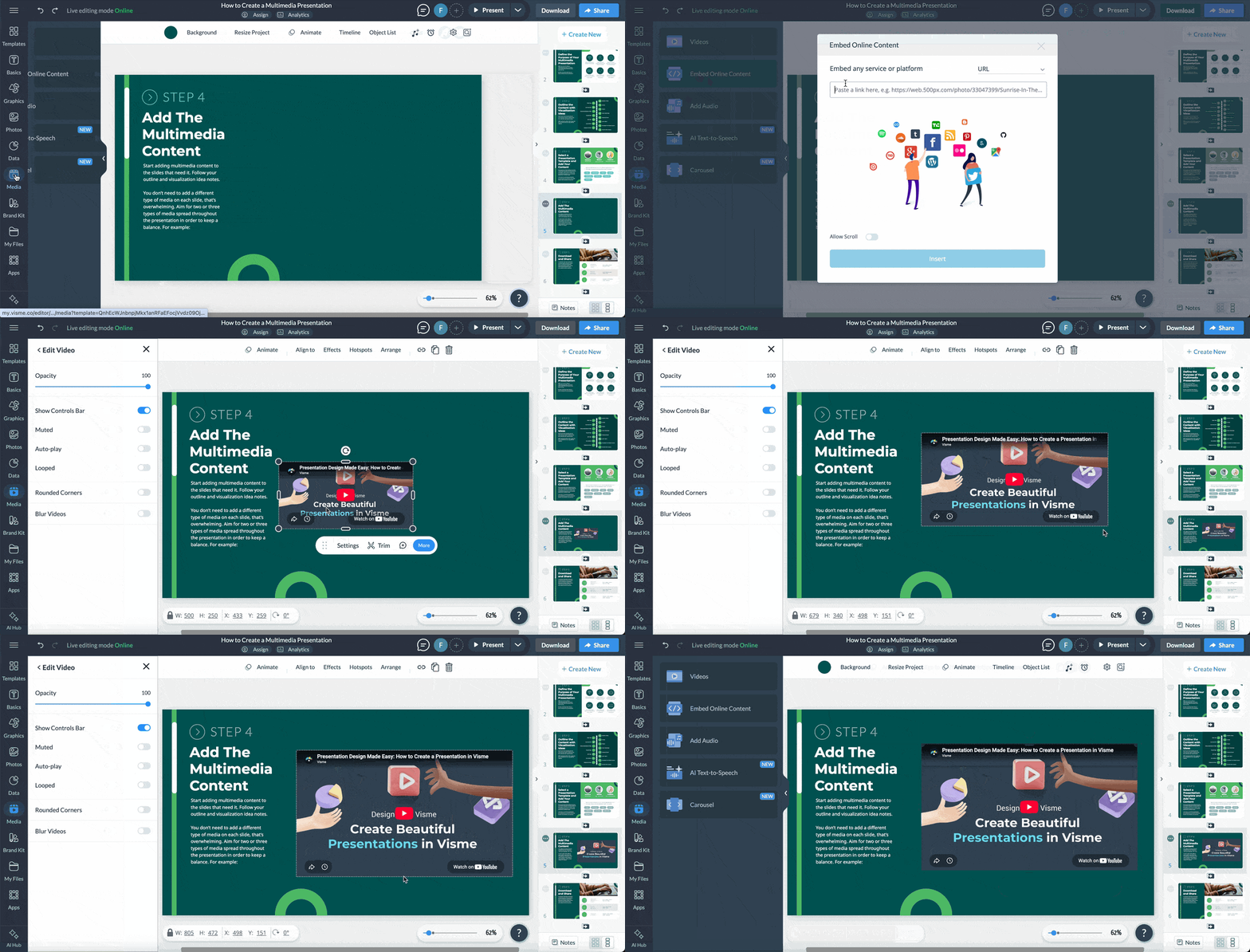
Video clips can be uploaded or linked from YouTube, Vimeo or Wistia. Use them selectively and trim them to the material the story needs. Long footage can inflate the run time and interrupt the pace.
4. Use animation and transitions to control attention
Motion shapes what viewers notice and when. Coordinate element animations, video clips and sound with each scene’s duration: a slide may stay on screen until its animations or audio finish. If those elements run long, the scene will too.
Visme includes animated icons, shapes, lines, illustrations, characters, gestures, text effects, special effects and animated charts or data widgets. These assets can point to one idea or show a change over time. Set their speed and repetition with restraint; repeated motion can extend a scene and distract from the narration.
Place animated elements with purpose
A moving icon beside one key point can give the eye a destination. Avoid animating every element at once. When movement competes across a slide, viewers have to choose what to follow, and the narration loses its visual support.
For stock or uploaded video, trim the clip to the useful action and set the scene to advance when the clip ends if it needs to play in full. Mute the clip when its original sound would conflict with narration or music. To make a clip a background, stretch it across the slide, move it behind foreground content and lock it while editing. A subtle color overlay can help full color footage stay behind text and graphics.
Animated backgrounds loop and follow transition settings. They can work on title cards and section breaks with little copy. For information dense scenes, a still background or quiet movement gives text and data room to breathe.

Build and time manual animations
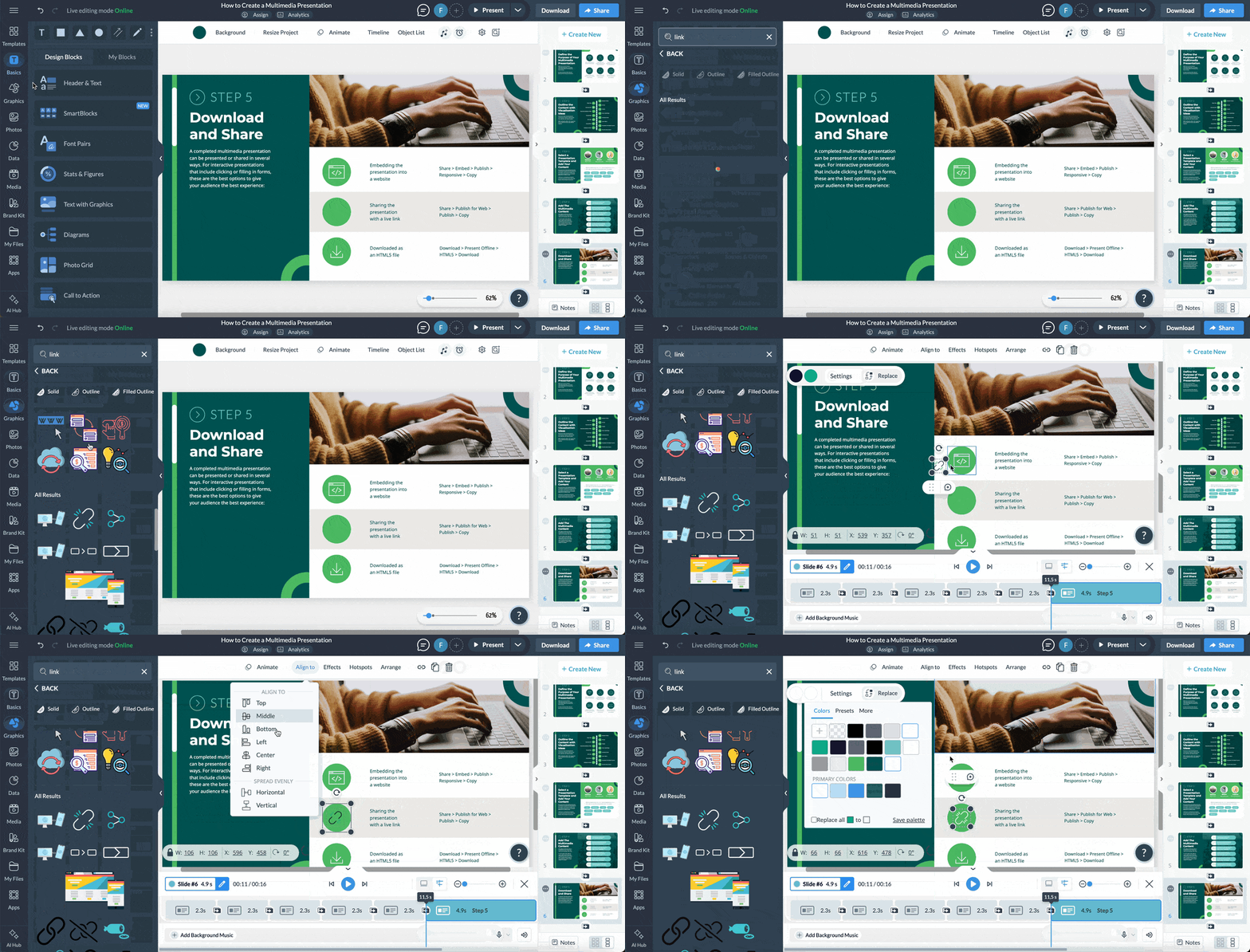
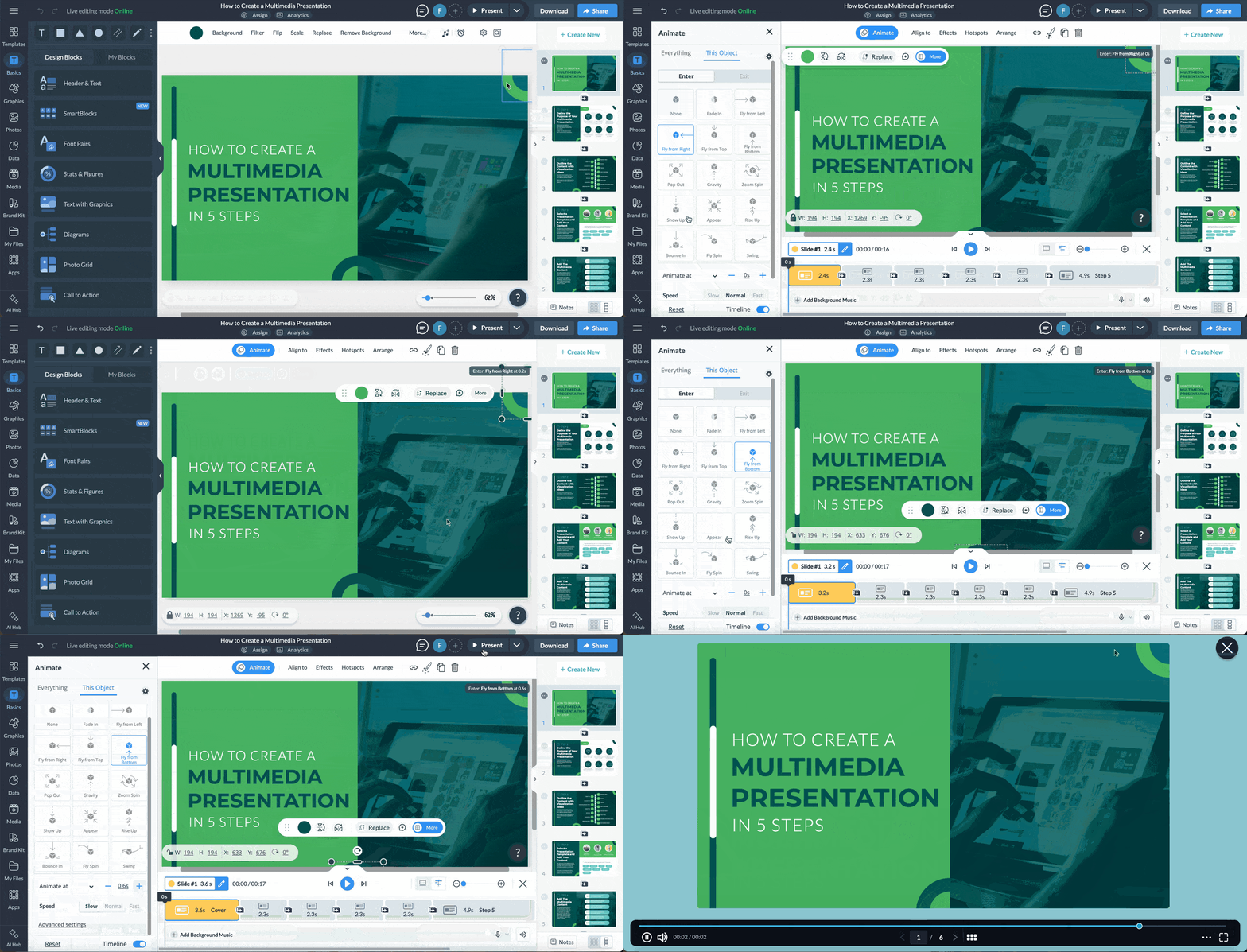
Manual animation lets you control what enters and exits, including text that appears letter by letter or word by word. Visme supports combinations such as fly, fade, rotate and grow, with easing options such as bounce. Match each entrance to the moment the narration introduces the idea, and use only a few animated elements per scene.
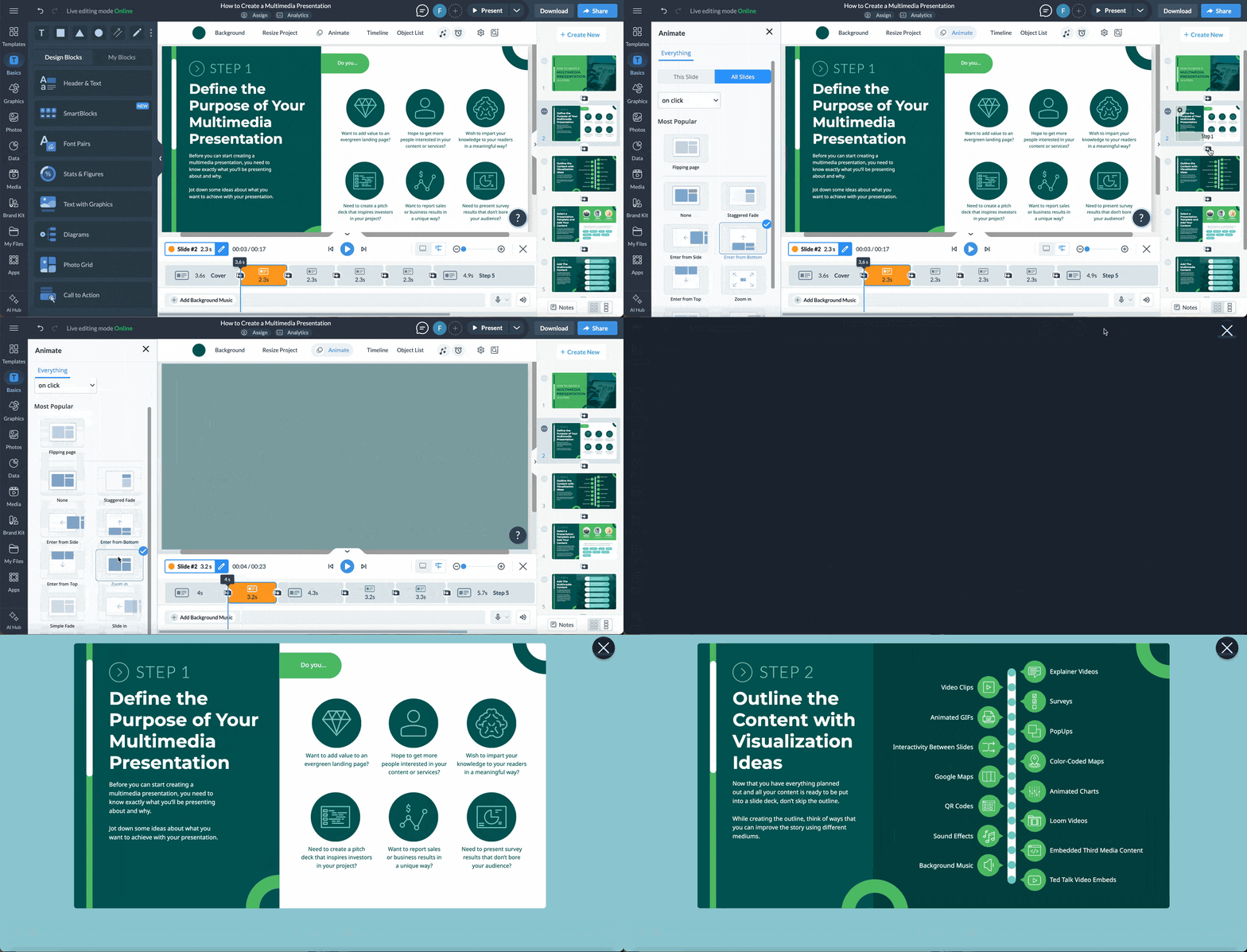
The Timeline displays slide animations so you can align them with audio. On-click animations don’t carry over to MP4 downloads, so set the sequence to play automatically instead. Transitions connect scenes; one repeated style can unify the video, while a deliberate change can signal a new section. Visme includes options such as Simple Fade, Zoom In and Flipping Page, and allows a transition to be applied across slides. Set slides to advance automatically after a duration or when a video ends, then inspect the whole sequence in the Timeline.
5. Add music, voiceover or AI narration
Sound is part of the presentation’s pacing, not a finishing touch. TechSmith’s 2024 report says 35% of viewers name clear, easy to hear narration among the things that keep them watching instructional videos. Among people who stop because of poor quality, bad audio is tied with blurry footage as a leading reason.
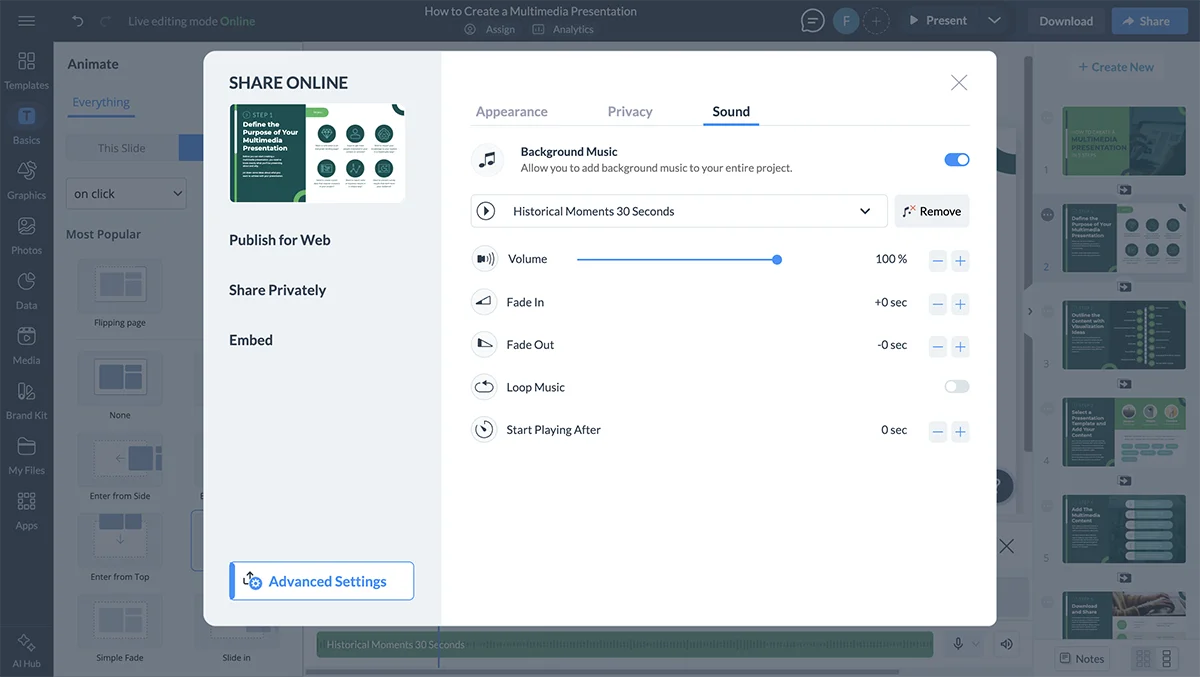
Plan audio alongside transitions and animation. You can use background music across the presentation, add sound to individual slides, adjust audio in a video clip or narrate the slides. A long audio track can hold a scene open after its visuals are ready to move on, so align duration and slide timing as you work.
Set a background music bed
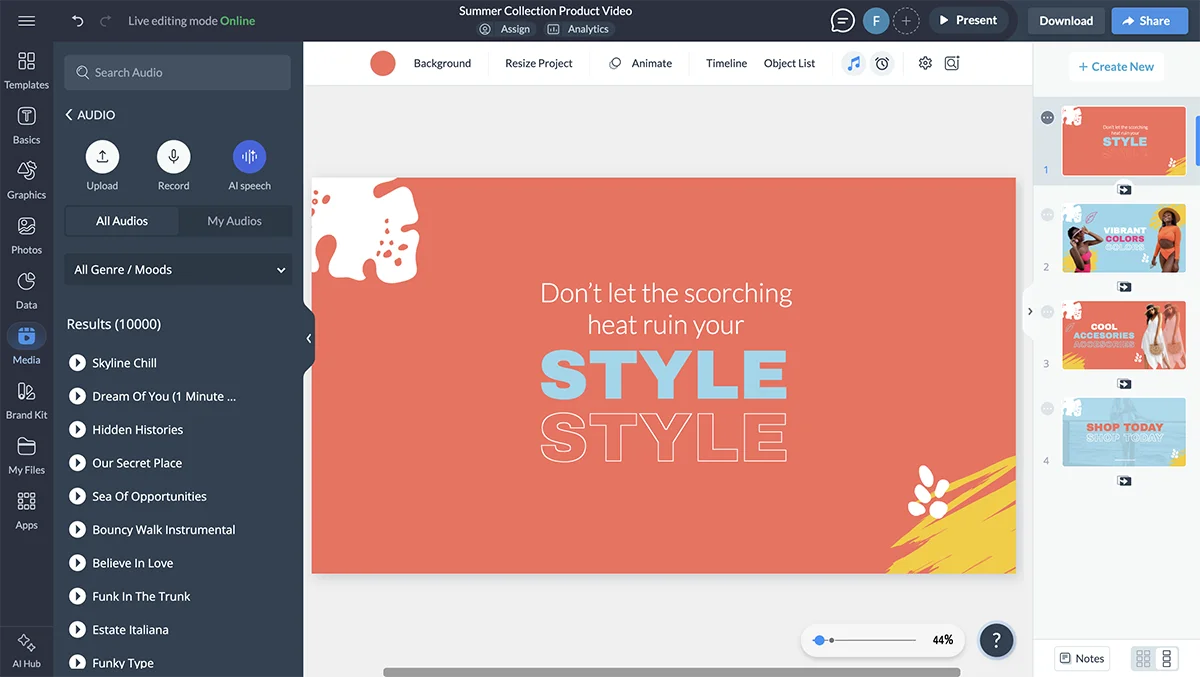
Music can establish tone and soften gaps between spoken sections. Keep its volume low enough that narration remains easy to hear. Visme’s audio library includes free tracks; you can also upload a file. Set the level, fade the track in or out, choose its starting point and loop it beneath other audio and video for the length of the presentation.
Add audio to one scene
Use slide level sound effects or music when a sound belongs to a particular moment rather than the whole piece. Select a library track or upload an MP3 or WAV file, then trim it, adjust volume, set a fade or loop and choose when it begins.
Record or generate narration
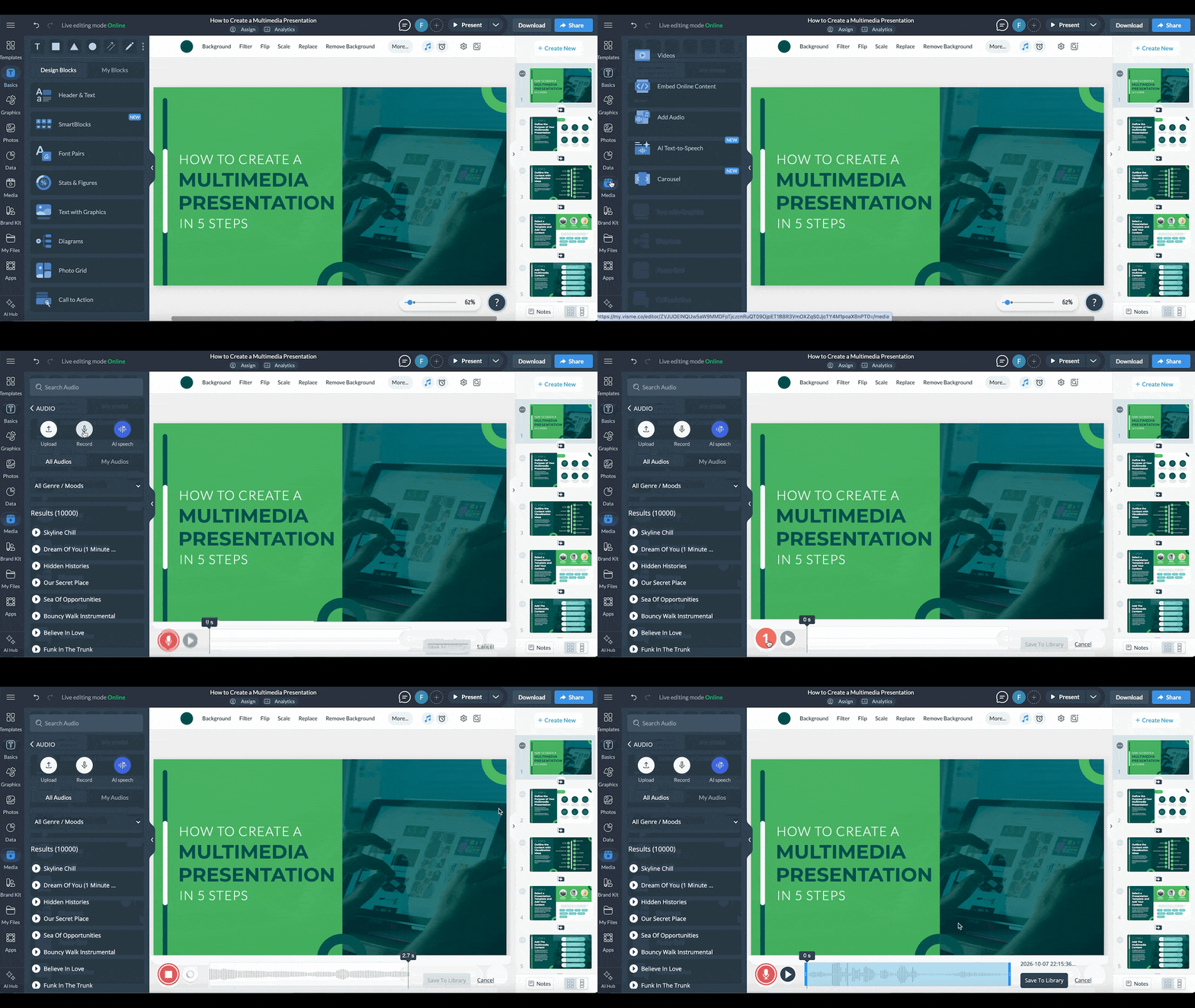
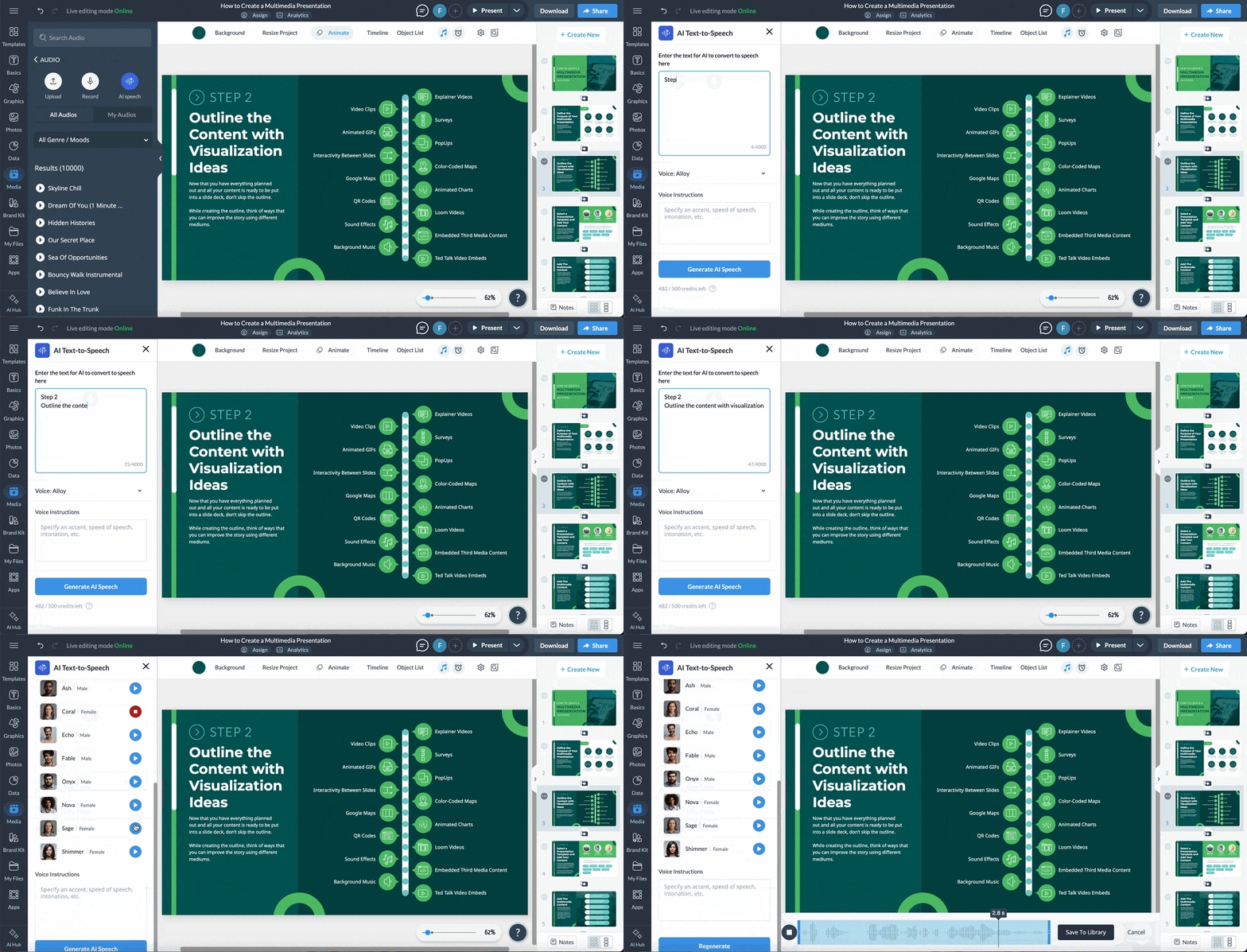
A recorded voiceover gives you control over how the explanation sounds. Work from the script and record one slide at a time, so you can redo a passage without repeating the whole session. Visme supports browser based recording and uploaded audio recorded elsewhere.
If you don’t want to record your voice, Visme’s AI Text to Speech can create narration from the script. The source describes six available voices and options to describe pace, accent or mood. Listen through the result and check pronunciation and timing against the visuals before keeping it.
6. Record yourself over the slides
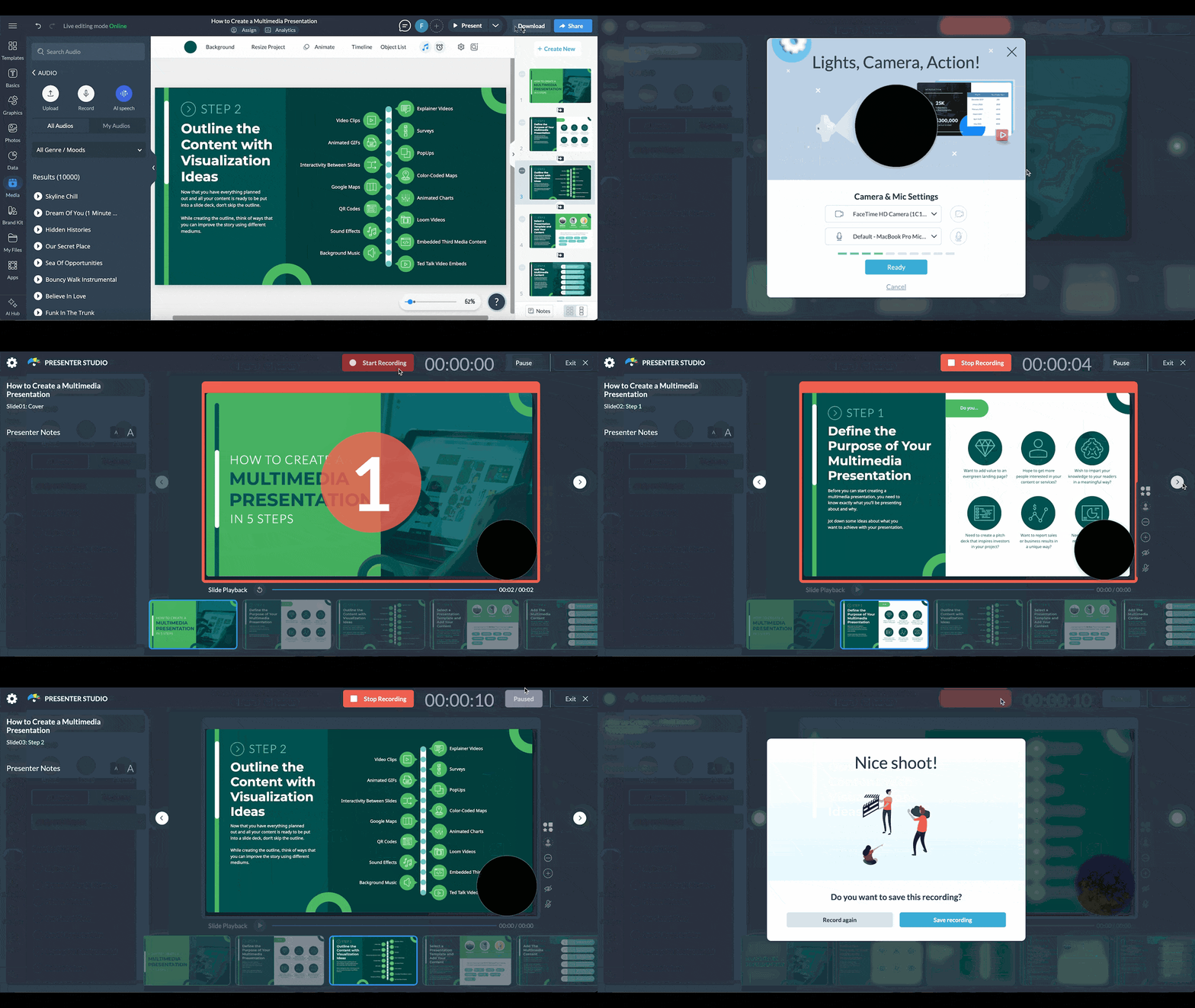
A face on screen can make a pitch, training module or team update feel more direct. TechSmith’s 2024 report says 87% of viewers prefer a real person on screen to an animated character or AI avatar. That doesn’t mean every presentation needs a webcam: choose the format based on the subject and how much the viewer needs to see.
- Camera and slides: A small picture in picture bubble shows the presenter over the slide. It can suit onboarding, training and pitches where personality or trust matters.
- Audio only: The voice plays over full screen slides. This leaves the full canvas available for dense data or suits presenters who prefer not to appear on camera.
For a cleaner recording, put the camera at eye level and frame your head and shoulders. Face a window or soft light so your face isn’t in shadow. Choose a quiet room and use an external microphone if one is available. Keep notes close by, but don’t read the slide aloud. A short test recording lets you check sound, framing and light before committing to the full presentation.
Matt Abrahams, a Stanford Graduate School of Business lecturer and host of Think Fast, Talk Smart, recommends raising the camera to eye level and looking into the lens while speaking. In Visme, open Presenter Studio from the menu beside Present. Move and resize the camera bubble so it doesn’t obscure essential content, or switch off the camera for audio only. Presenter Notes remain visible to you, and the tool lets you pause, resume and record again before saving.
7. Review timing and accessibility
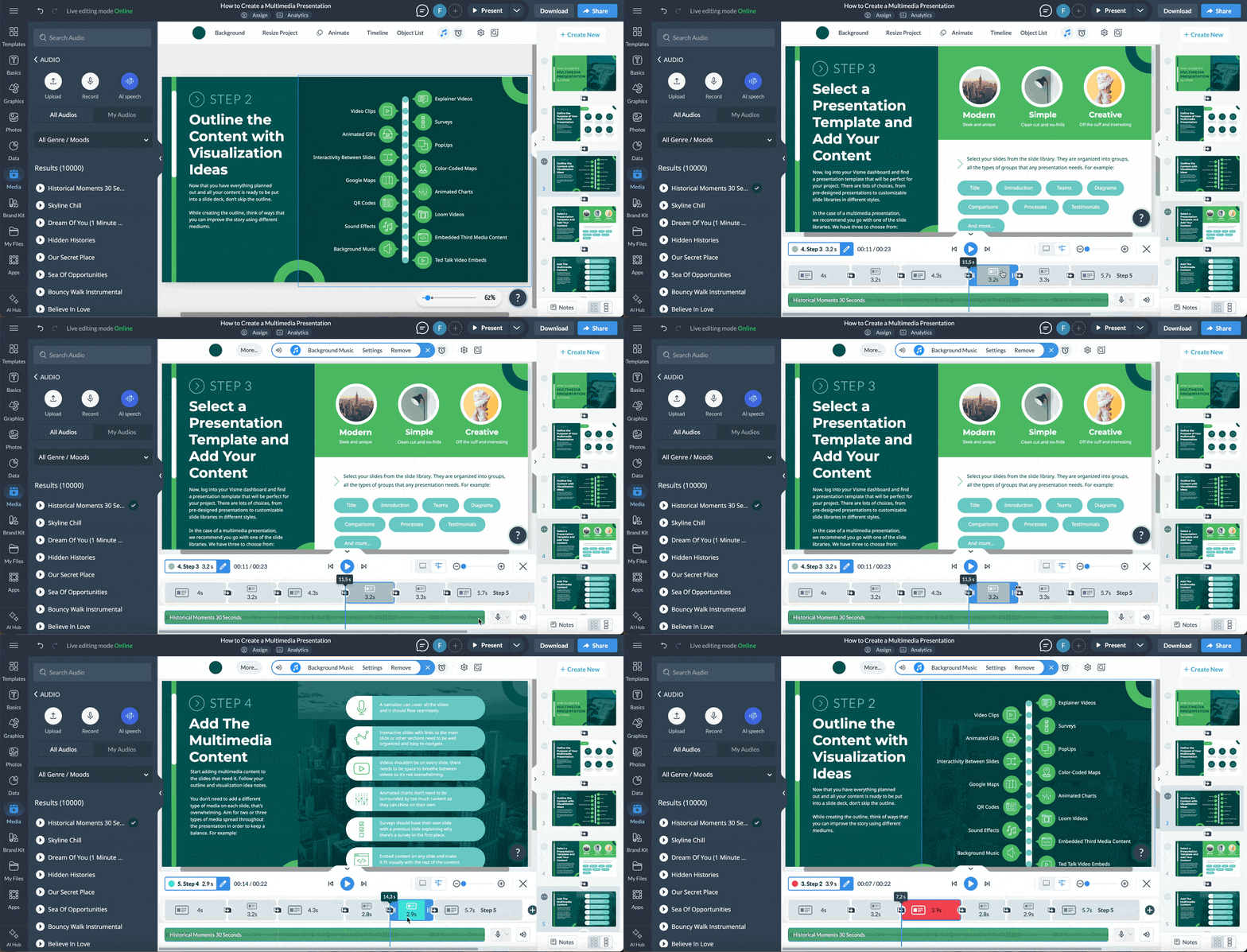
Watch the presentation from beginning to end before export. Proofread for spelling and grammar, confirm that type size and hierarchy are consistent, and check each slide in sequence. In Visme, use Present for a review, then download a test video and play it in a video player. That second pass shows the piece as viewers will experience it.
Look for narration that outlasts a slide, transitions that cut off a clip and scenes that linger after their point is made. Visme’s Timeline shows slide duration, animations and audio together. Adjust timing there and replay the sequence to confirm the rhythm.
Accessibility checks help people watching without sound, people who are deaf or hard of hearing, people using screen readers and people who see color differently. Before export:
- Add captions: Caption narration and video clips so spoken information is available to viewers who can’t hear it and those watching with sound off. Visme has caption controls.
- Check contrast: Make sure text remains distinct from its background, especially when it sits over photos or moving footage.
- Don’t rely on color alone: Pair color in charts, labels and status markers with text, bolding, underlining or another visual cue.
- Allow reading time: Keep text on screen long enough to understand, and avoid content that flashes more than three times per second. See the three flashes per second guidance.
- Narrate key visuals: Describe information conveyed by charts, diagrams or images so listeners who can’t see the slide don’t miss it.
Visme’s accessibility tools include an Accessibility Checker and a Visual Simulator for viewing designs through simulations of color blindness, cataracts and glaucoma. If you also publish the deck as an interactive link, add alt text and set reading order for screen readers. The tool’s accessible presentation guidance covers those additional checks.
8. Export and share the right version
Keep the final video as short as the material allows. TechSmith reports that nearly two thirds of viewers consider videos longer than 20 minutes too long. Visme exports MP4 videos up to 10 minutes; longer material can be divided into a short series. Presenter Studio recordings are limited to 3 minutes on the Free plan and 45 minutes on paid plans.
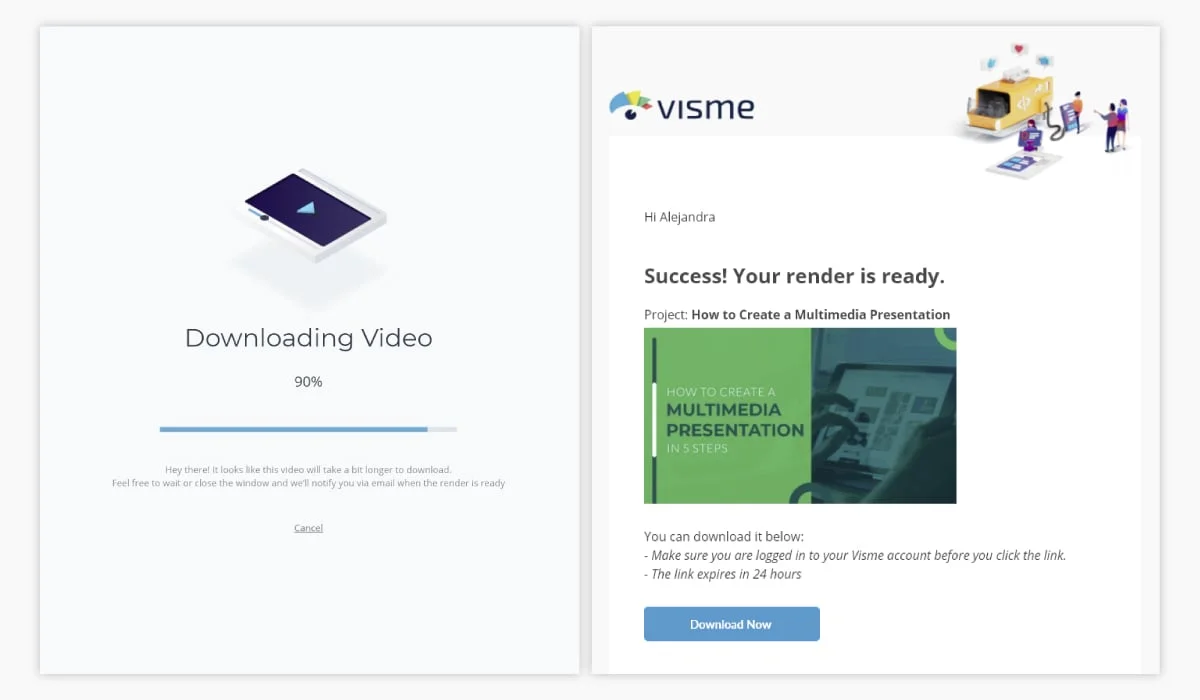
In the Visme editor, download through the Video/GIF options and choose the full presentation or selected slides. Longer presentations with many animations may take more time to render. Before exporting, settle four production choices:
- File type: MP4 plays on most devices and platforms, including YouTube, Vimeo, social platforms and many learning systems.
- Aspect ratio: A wide 16:9 layout fits video platforms, websites and courses. Square and vertical canvases may suit social feeds.
- Duration: Keep short form pieces focused. Divide a long tutorial or training presentation into sections viewers can watch separately.
- Interaction: Links and on-click controls don’t work in an MP4. If viewers need to click through, share an interactive presentation link alongside the video.
Share the file where the audience expects to find it: on a video platform, social channel, website or learning system. Visme’s Social Media Scheduler can schedule posts. A presentation can also be published as a shareable link, with views tracked through Visme Analytics. For training, Visme supports SCORM export for upload to an LMS. The MP4 and interactive presentation serve different viewing needs, so consider sharing both when the audience needs video playback and clickable content.
Adapt a PowerPoint deck into a video
PowerPoint can export a deck directly, including slide animations, transitions and recorded narration. On Windows, record narration and slide timings first if you want them included. Then select File > Export > Create a Video.
- Choose the output quality: Ultra HD (4K), Full HD (1080p), HD (720p) or Standard (480p). Higher quality creates a larger file; the source says 4K requires Windows 10 or later.
- Choose whether to use recorded timings and narration. If you don’t use them, set the number of seconds each slide stays on screen; the default is five.
- Select Create Video, choose MP4 or WMV and save the file.
To add more motion or audio, import the PowerPoint into Visme. Review layout and content placement after import, then add animated elements, music, AI narration or a Presenter Studio recording. Follow the same timing, accessibility and export checks used for a deck built from scratch.
Practical questions before you begin
Which software should you use?
The best fit depends on what the slides need. Visme combines slide design, animation, music, AI narration, webcam recording and MP4 export in a browser based tool. Other options can be compared in this guide to video presentation software.
What should the opening do?
Use the first few seconds to tell viewers what they’ll learn and why it matters. A question, a surprising fact or a quick preview of the result can establish the subject before the explanation begins.
How do you show a presenter?
Record over the slides with a webcam tool such as Presenter Studio. Keep the camera at eye level, use soft light and look into the lens while speaking. Place the camera bubble where it won’t cover important information.
How do you turn slides into a video?
Set slide timings, transitions and audio, make each scene advance automatically, then export as MP4. In Visme, use the Video/GIF download options after reviewing the complete sequence.
What are common uses?
Product demonstrations, training, explainer videos, recorded sales pitches and year in review presentations are all suitable formats. The right structure depends on the audience and the action or understanding the video needs to support.
Make the sequence work as one piece
The main production challenge is coordination. A script determines what each scene needs to show; the scene duration has to accommodate its narration, animation and clips; and the final file has to suit the place people will watch it. Treat those decisions as connected and the presentation will feel intentional from the first frame to the last.
For a first pass, keep the storyboard simple, make one point per slide, use motion to direct attention and test the MP4 before sharing it. Then make the accessibility and timing adjustments that playback reveals. A video presentation succeeds when the message remains easy to follow even when the presenter isn’t there to explain it.